This script solves the problem that an AZL may be looking at various locations on a document for possibilities of a field. You want in script to control which zone is assigned to a Field and that character correction is available for that field.
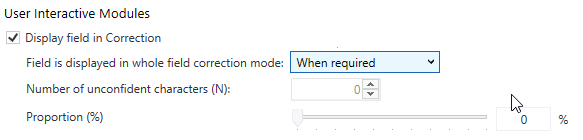
- Assign any subfield of the AZL to a Field. This is needed so that you can set the checkbox for Display Field in Correction.
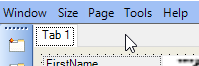
- Open Document Validation Form Designer Menu/Design/ValidationForms/Customize/Step1.
- click exactly where the mouse cursor is in the image to see the Validation Form Settings.
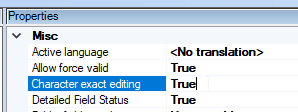
- Make sure that Character Exact Editing is Enabled in the Form Settings
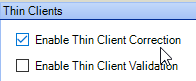
- Make sure that Thin Client Character Correction is selected in the Project Settings if you are using the Thin Client.
- Add this script to the Document Class. This example forces the Field FirstName to use the second subfield from the Advanced Zone Locator.
Private Sub Document_AfterExtract(ByVal pXDoc As CASCADELib.CscXDocument)
   Dim AZL As CscXDocField, FirstName As CscXDocField, Zone As CscXDocSubField
   Set AZL=pXDoc.Locators.ItemByName("AZL")
   Set Zone =AZL.Alternatives(0).SubFields(1)
   Set FirstName=pXDoc.Fields.ItemByName("FirstName")
   Chars_Replace(FirstName,Zone)
   Dim x As Long
   x=1

End Sub

Function Chars_Replace(A As CscXDocField, B As CscXDocSubField)
   Dim C As Long
   While A.Chars.Count>0
      A.Chars.Remove(0)
   Wend
   For C=0 To B.Chars.Count-1
      A.Chars.Append(B.Chars(C))
   Next
   A.PageIndex=B.PageIndex
   A.Left=B.Left
   A.Width=B.Width
   A.Top=B.Top
   A.Height=B.Height
   A.Confidence=B.Confidence
End Function